VELORYN Documentation
Complete guide to using every feature of VELORYN — the world's first fully offline AI survival assistant. This documentation covers everything you need to know to use the app effectively, configure it for your device, and get the most out of every tool.
First Launch
When you open VELORYN for the first time, the app will run a one-time setup process. This extracts the AI models and knowledge base from the app package to your device's storage. This process takes approximately 1–3 minutes depending on your device speed.
After setup completes, VELORYN is ready to use. No account creation, no login, no internet connection needed — ever.
App Navigation
VELORYN has five main tabs accessible from the bottom navigation bar:
| Tab | Purpose |
|---|---|
| Tools | Survival tools, inventory management, checklist, and field journal |
| Voice | Hands-free voice interaction with the AI assistant |
| Chat (center) | The main AI chat interface — type questions, get survival guidance |
| Mesh | Peer-to-peer device discovery for group coordination |
| Settings | Appearance, device monitor, model management, advanced configuration |
The Chat tab is the center tab and the primary interface. The sidebar (accessible via the menu icon on the top-left of the Chat screen) contains your chat history.
Chat Basics
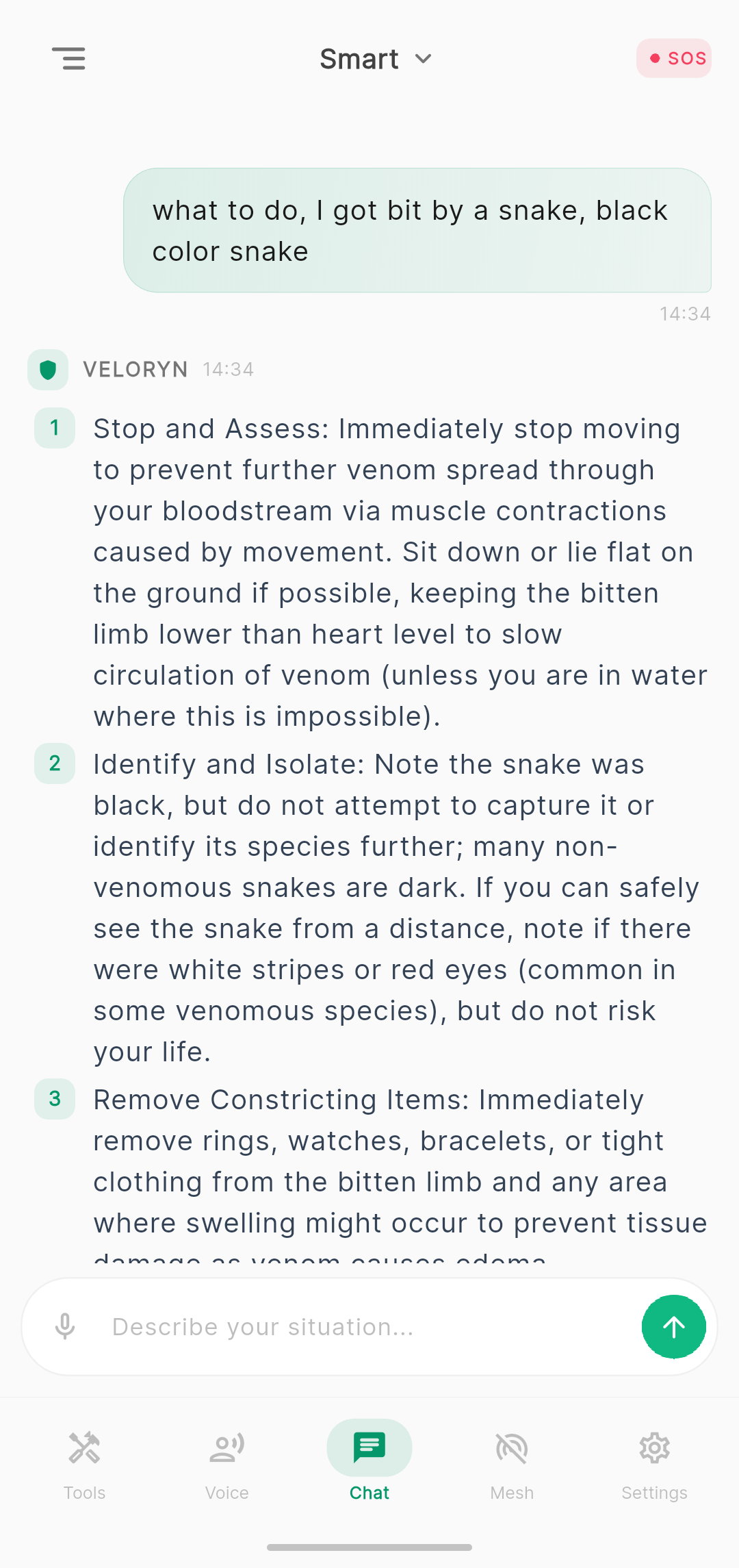
The Chat screen is where you interact with VELORYN's AI. Type your survival question in the input bar at the bottom and tap the send button. The AI will process your question and stream a response in real-time.
How to ask effective questions
VELORYN responds best to specific, situational questions. The more context you provide, the better the response.
| Less effective | More effective |
|---|---|
| "How to survive?" | "How to survive a night in a desert with no water or shelter?" |
| "First aid" | "First aid for a deep cut on my forearm that won't stop bleeding" |
| "Food" | "What plants are safe to eat in a tropical rainforest during spring?" |
Stopping a response
While the AI is generating a response, the send button changes to a stop button (red square). Tap it to instantly stop the response. The AI model stays loaded and ready for your next question — stopping does not unload anything.
Read Aloud
Every AI response has a "Read Aloud" button below it. Tap it to have the response spoken through your phone's speaker. This is useful when your hands are busy or you're in a dark environment.
Environmental awareness
VELORYN uses your phone's GPS to detect your location, biome (desert, tropical, arctic, etc.), and current season. This context is automatically included in every query, so the AI tailors its responses to your actual environment. You don't need to tell the AI where you are — it already knows.
Intelligence Modes
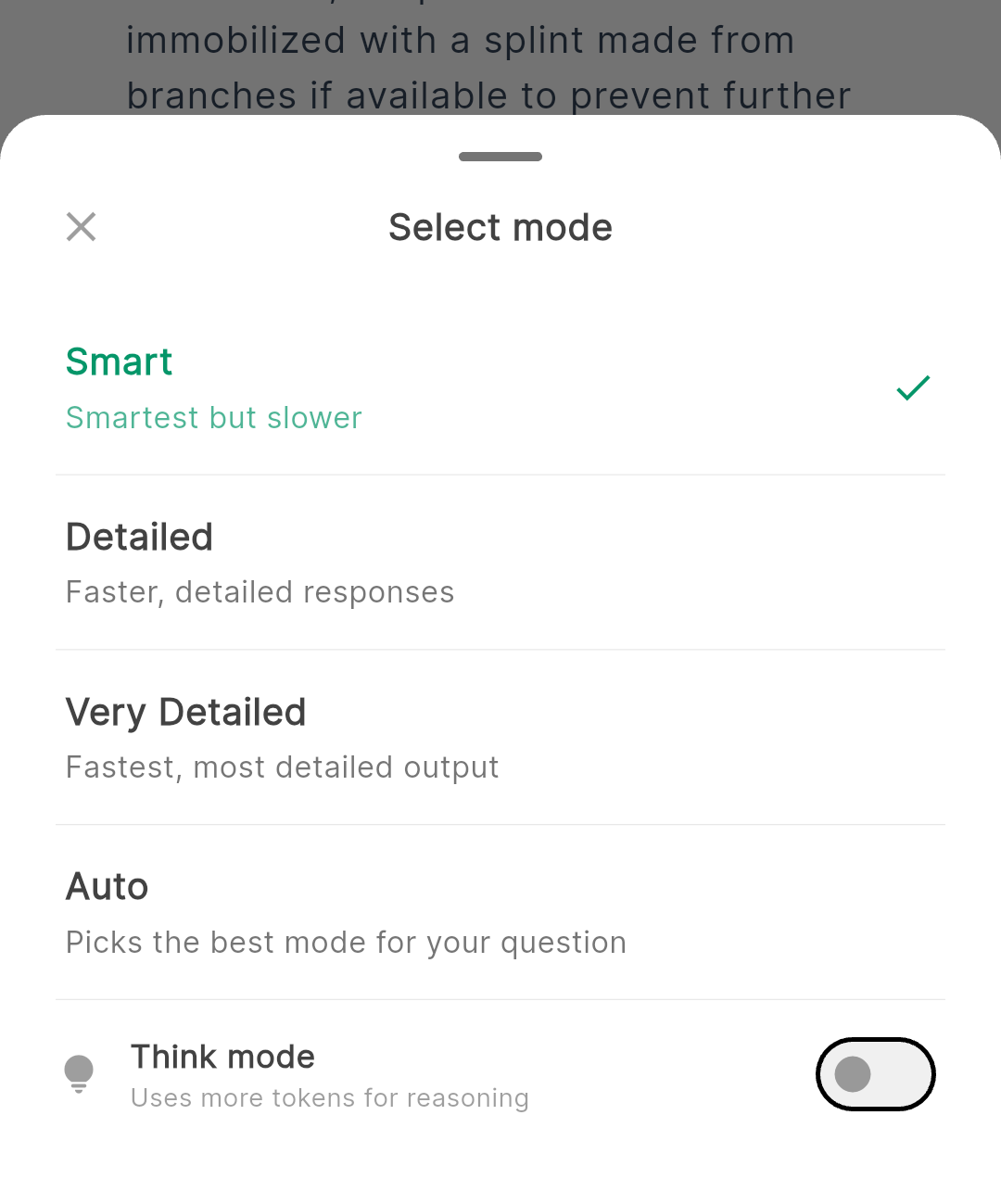
Tap the intelligence selector at the top center of the Chat screen to choose how the AI responds. A bottom sheet appears with four options:
| Mode | Best for | Speed | Quality |
|---|---|---|---|
| Smart | Complex decisions, medical triage, planning | Slower (3–8 min) | Highest |
| Detailed | How-to guides, step-by-step instructions | Fast (30–60 sec) | Good |
| Very Detailed | Long-form guides, extensive reference material | Fast (30–60 sec) | Good, longest output |
| Auto | Let the system decide based on your question | Varies | Optimal for each query |
How Auto mode works
Auto mode analyzes the keywords and intent of your question. Emergency and medical questions are routed to Smart mode for maximum intelligence. How-to questions go to Detailed mode for speed. Planning questions get extra tokens for comprehensive output. This happens instantly with no AI processing — it's a keyword-based classifier.
Think Mode
Think Mode is a toggle in the intelligence selector bottom sheet (the lightbulb icon). When enabled, the AI reasons through your question step-by-step internally before responding. This produces higher-quality answers for complex problems but takes significantly longer.
When to use Think Mode
- You need to decide whether to stay or move given injuries, weather, and terrain
- You're planning a multi-day survival strategy with limited resources
- You need to assess multiple medical conditions and prioritize treatment
When NOT to use Think Mode
- Simple how-to questions ("how to start a fire")
- Quick reference lookups ("is this plant edible")
- Emergency situations where speed matters more than depth
Emergency / SOS Mode
Tap the red SOS button in the top-right corner of the Chat screen to activate Emergency Mode. This changes VELORYN's behavior:
- Responses become shorter, faster, and purely action-oriented
- Numbered steps only — no explanations, no background information
- The AI prioritizes life-critical information above all else
- Non-essential processing is stripped to minimize response time
Tap SOS again to deactivate Emergency Mode and return to normal operation.
Chat History & Export
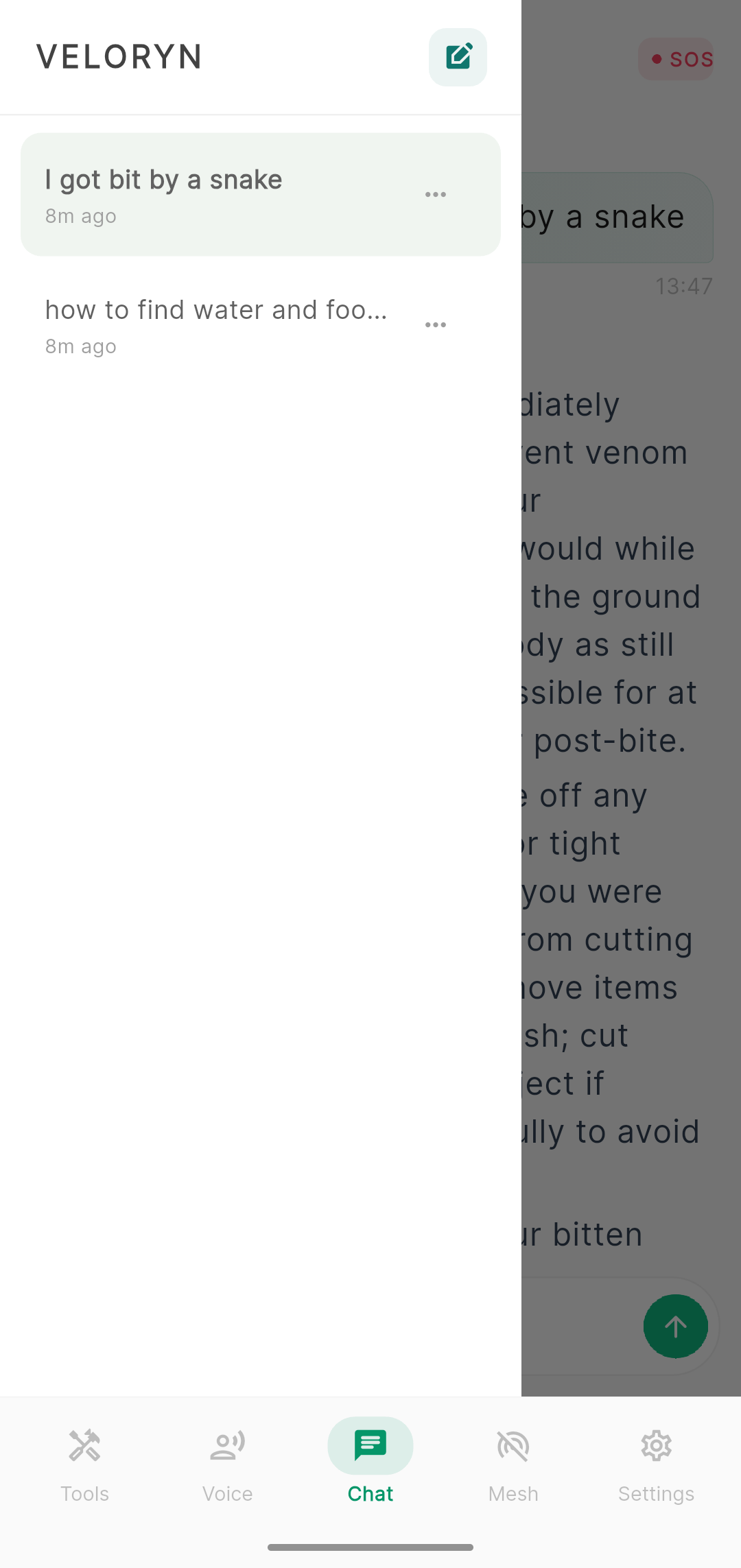
Viewing chat history
Tap the menu icon (top-left of the Chat screen) to open the sidebar. All your previous chat sessions are listed with date and time. Tap any session to reload it.
Exporting a chat
Tap the three-dot menu on any chat session in the sidebar and select Export. A popup appears with two options:
- PDF — Formatted document with timestamps, suitable for printing or sharing
- TXT — Plain text file with full conversation, lightweight and universal
The exported file contains every message (yours and VELORYN's) with timestamps, in chronological order.
Deleting a chat
Tap the three-dot menu on any chat session and select Delete. This permanently removes that session. The action is irreversible.
Voice Assistant
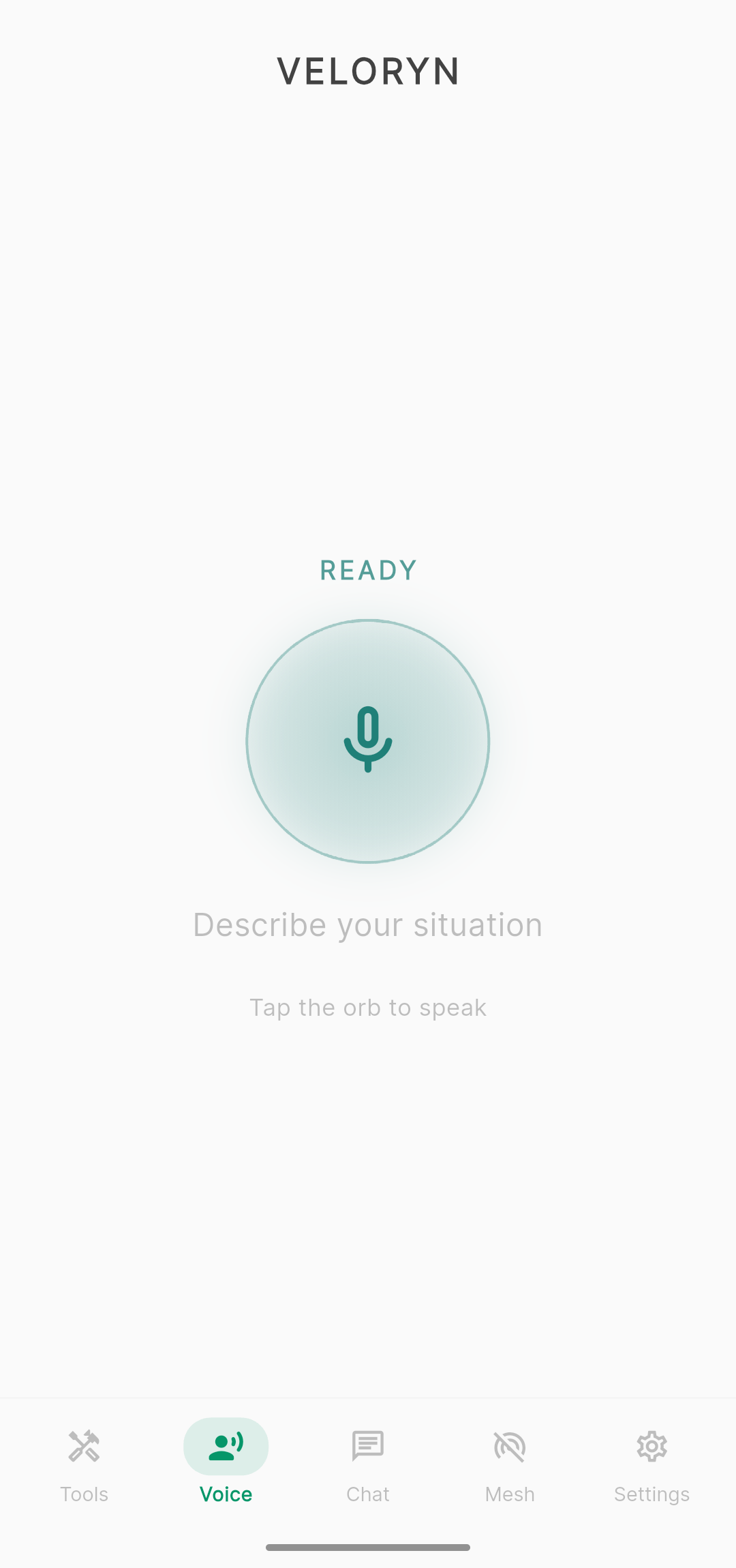
The Voice tab provides hands-free interaction with VELORYN. Tap the microphone button to speak your question. VELORYN converts your speech to text, processes it through the AI, and reads the response aloud.
How to use
Navigate to the Voice tab
Tap the microphone button — it will pulse to indicate listening
Speak your question clearly
VELORYN processes your speech and displays the AI response
The response is automatically read aloud
Survival Tools Overview
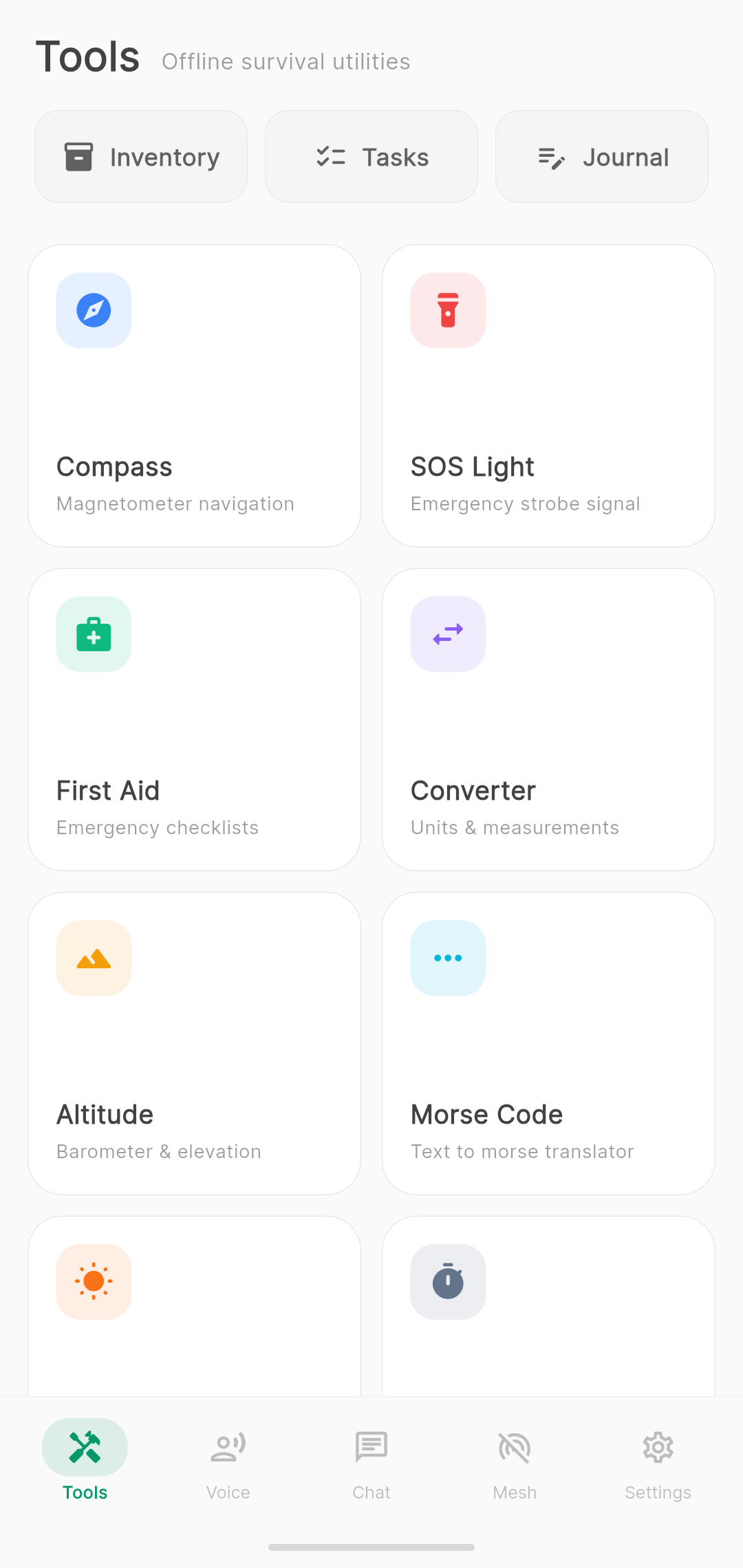
The Tools tab contains 20+ offline survival utilities organized as visual cards. Tap any card to open that tool. All tools work independently from the AI — you can use any tool while the AI is processing a query.
At the top of the Tools page, you'll find three buttons for productivity tools: Inventory, Tasks, and Journal. Below them is the grid of survival tools.
Compass
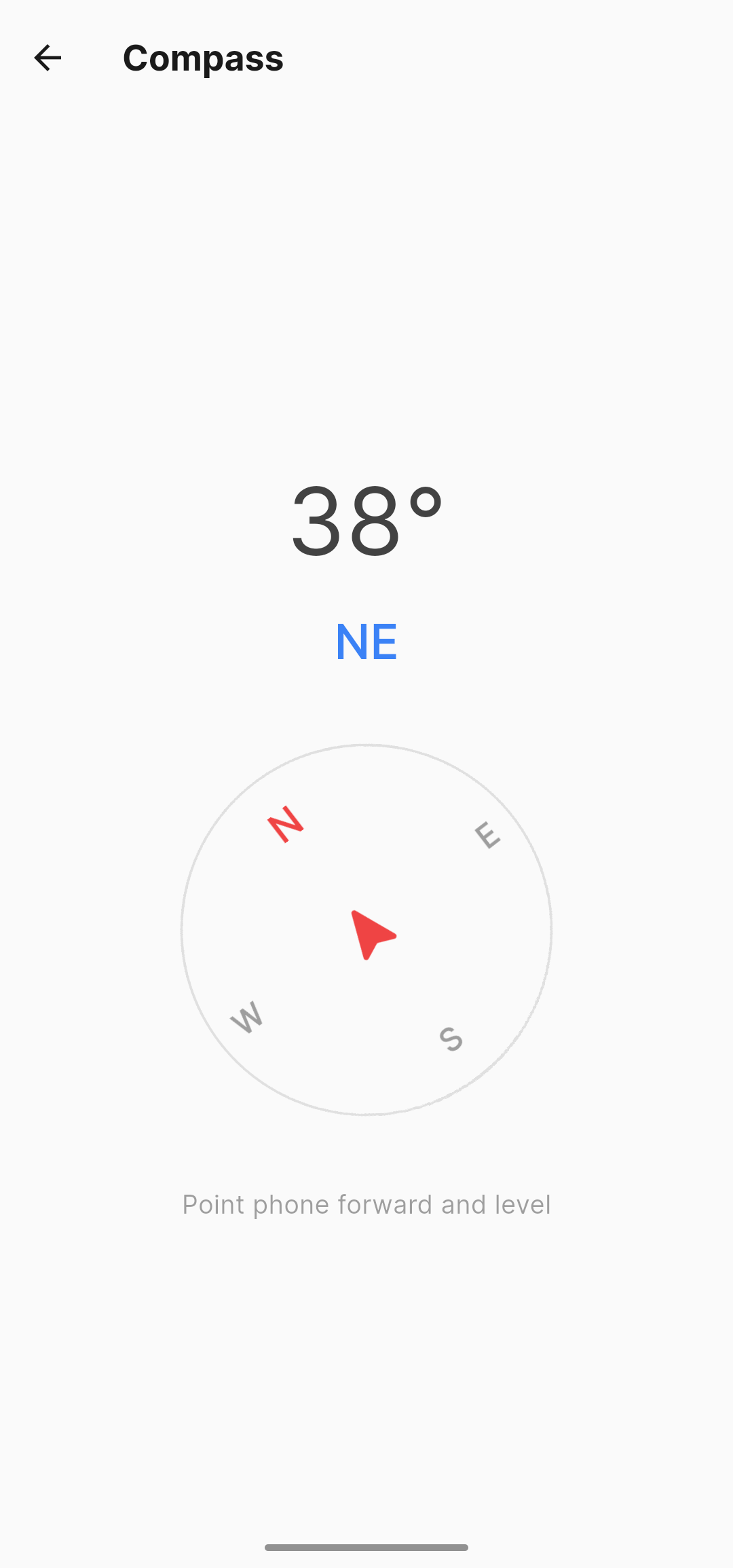
A real-time magnetic compass that uses your phone's magnetometer sensor. It shows your heading in degrees and cardinal direction (N, NE, E, SE, S, SW, W, NW).
How to use
- Open the Compass tool — the needle points to magnetic north
- Hold your phone flat and level for the most accurate reading
- Rotate your body (not just the phone) to determine your heading
Getting accurate readings
- Calibrate by moving your phone in a figure-8 pattern if readings seem off
- Keep away from metal objects, magnets, and electronics — they interfere with the magnetometer
- The compass works without GPS or internet — it reads the Earth's magnetic field directly
SOS Flashlight
Activates your phone's camera flash in the international SOS Morse code pattern: three short flashes, three long flashes, three short flashes (··· ─── ···). This is a universally recognized distress signal.
How to use
Open the SOS Flashlight tool
Tap Start — the flash begins the SOS pattern
Point your phone's camera flash toward the sky or toward where rescuers might be
The SOS pattern repeats continuously until you tap Stop
An SOS flashlight signal is visible up to several kilometers at night and can also be seen from aircraft.
Emergency Siren
Plays a loud SOS audio pattern through your phone's speaker at maximum volume. The pattern follows the SOS Morse code: three short beeps, three long beeps, three short beeps.
How to use
- Open the Emergency Siren tool and tap Activate
- The siren plays at maximum speaker volume
- Like the flashlight, the siren continues when you navigate away
- Tap Stop to silence it
First Aid Checklists
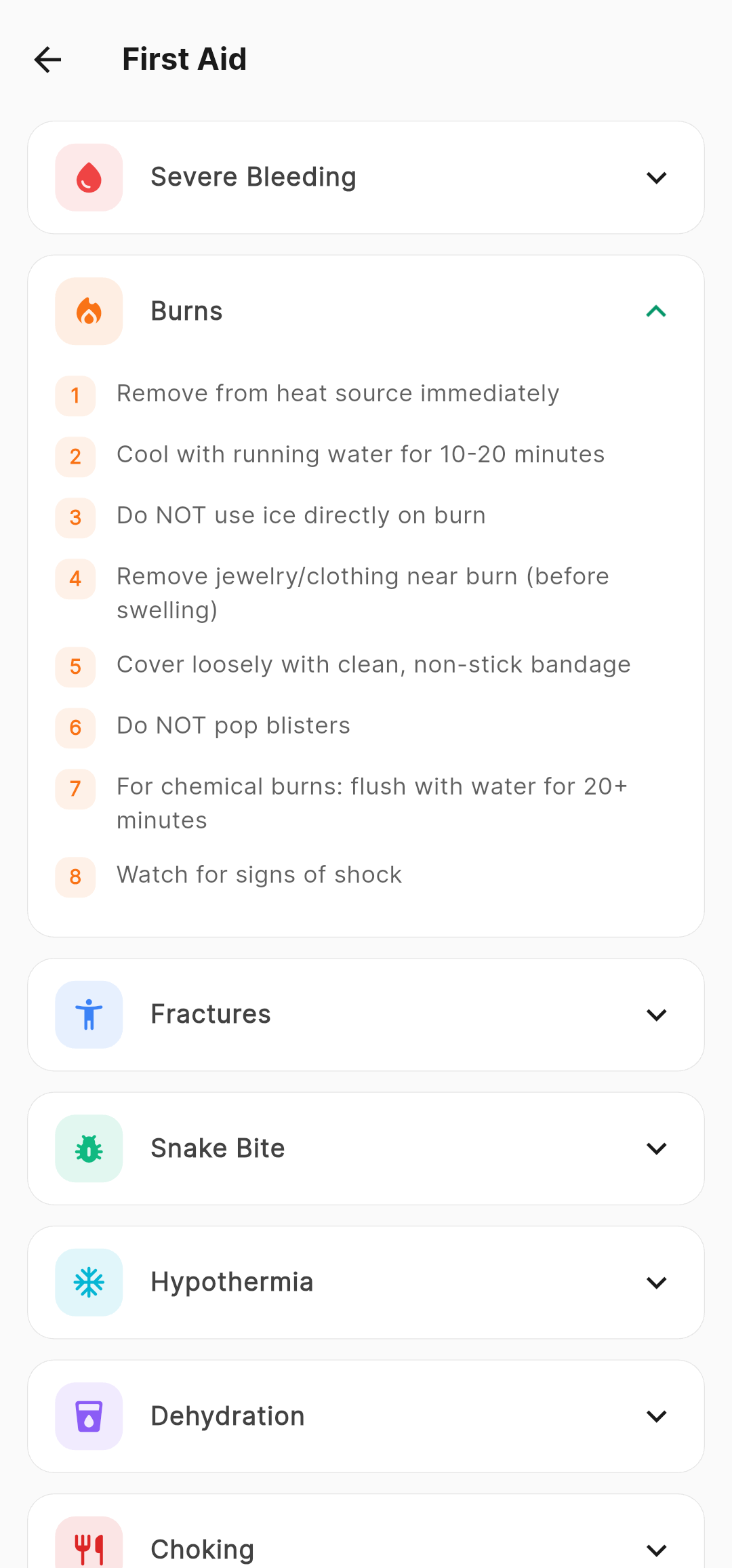
Interactive step-by-step medical checklists for 21 conditions. Each checklist walks you through the correct procedure with checkable steps.
Available conditions
Critical emergencies: Severe Bleeding, Burns, Fractures, Snake Bite, Choking, Heat Stroke, Drowning, Allergic Reaction
Medical procedures: CPR (Adult), Checking Pulse, Recovery Position
Common conditions: Dizziness/Fainting, Eye Injury, Fever, Common Cold, Insect Sting, Migraine, Sprain/Strain, Breathing Difficulty
How to use
Open First Aid and tap the relevant condition
Read each step carefully — they are in priority order
Tap the checkbox on each step as you complete it
Completed steps are visually marked so you don't lose your place
Water Purification Guide
Eight purification methods with step-by-step instructions, each matched to different scenarios and available materials.
Available methods
| Method | Requires | Time |
|---|---|---|
| Boiling | Fire, container | 1–3 minutes |
| Chemical Treatment | Iodine or chlorine | 30 minutes |
| Cloth Filtration | Clean cloth | Immediate |
| Solar Disinfection (SODIS) | Clear PET bottle | 6 hours |
| Condensation Collection | Plastic sheet, container | Hours |
| Tree Transpiration Bag | Plastic bag, string | Hours |
| Rock Boiling (No Pot) | Fire, rocks | 30+ minutes |
| UV Pen Method | UV sterilization device | 90 seconds |
Each method includes what it does and doesn't remove, expected water yield, and when to use it based on your available resources.
Shelter Builder
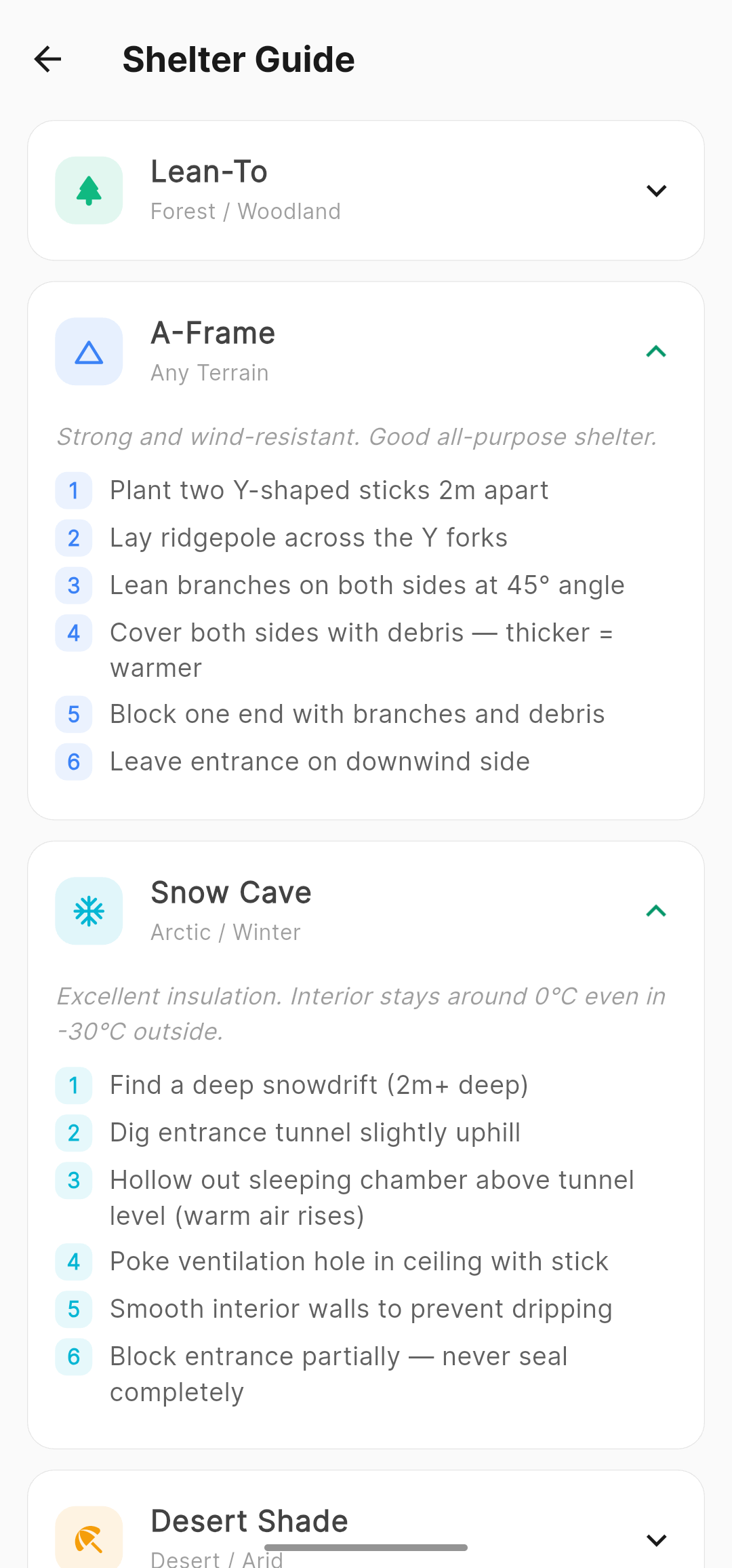
Visual guide to five emergency shelter types, each matched to a specific environment. Includes construction steps, materials needed, and tips for each biome.
Shelter types: Desert, Forest, Snow, Urban, and Coastal. Select the environment closest to your situation for relevant guidance.
Triage Helper
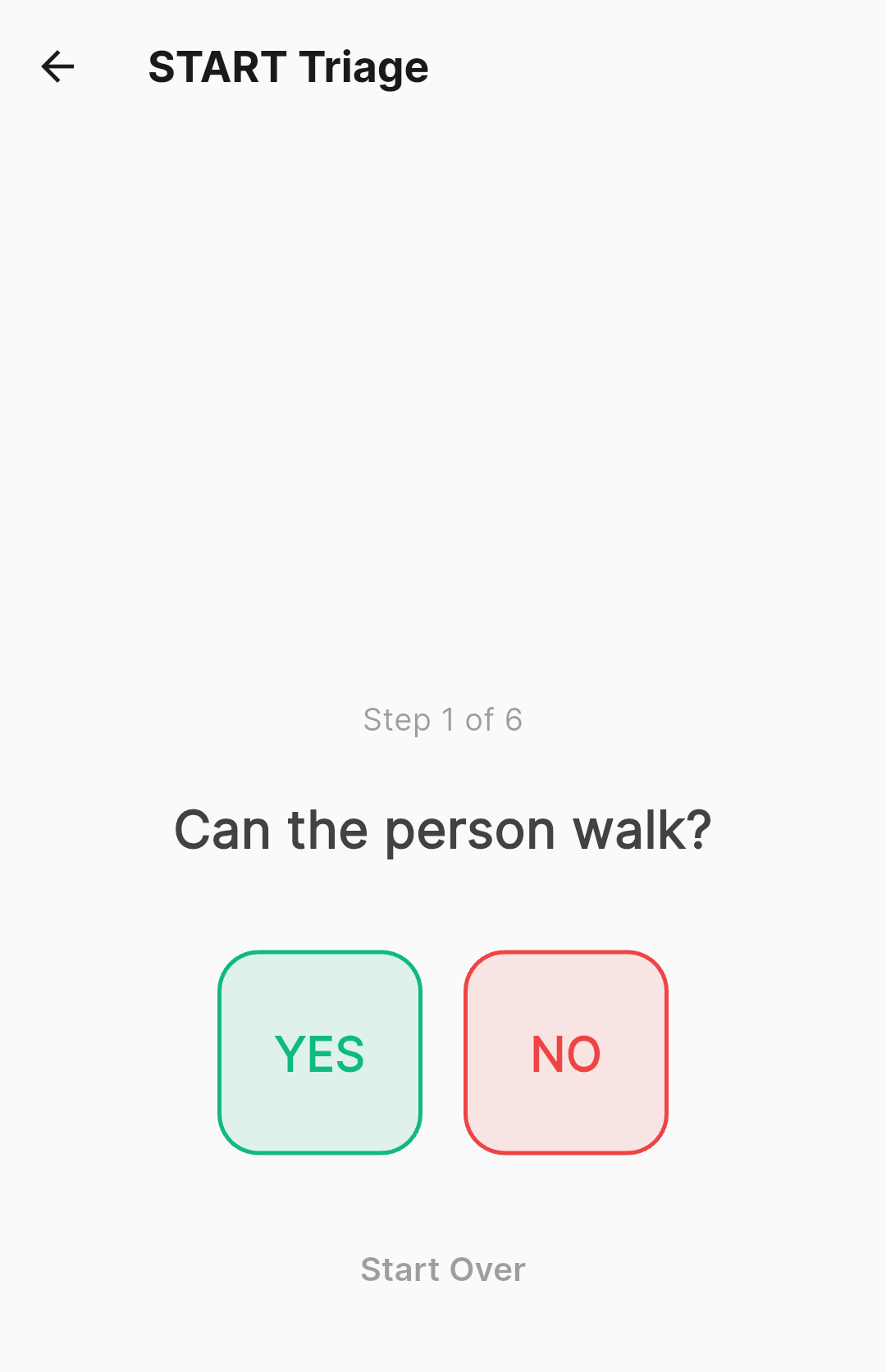
Based on the START (Simple Triage and Rapid Treatment) protocol used by emergency responders worldwide. This tool helps you prioritize treatment when multiple people are injured.
How it works
The tool walks you through a decision tree:
- Can the person walk? → Minor (green)
- Are they breathing? → If no after repositioning → Deceased (black)
- Respiratory rate? → Over 30/min → Immediate (red)
- Circulation (pulse)? → No radial pulse → Immediate (red)
- Mental status? → Can't follow commands → Immediate (red)
- Otherwise → Delayed (yellow)
Unit Converter
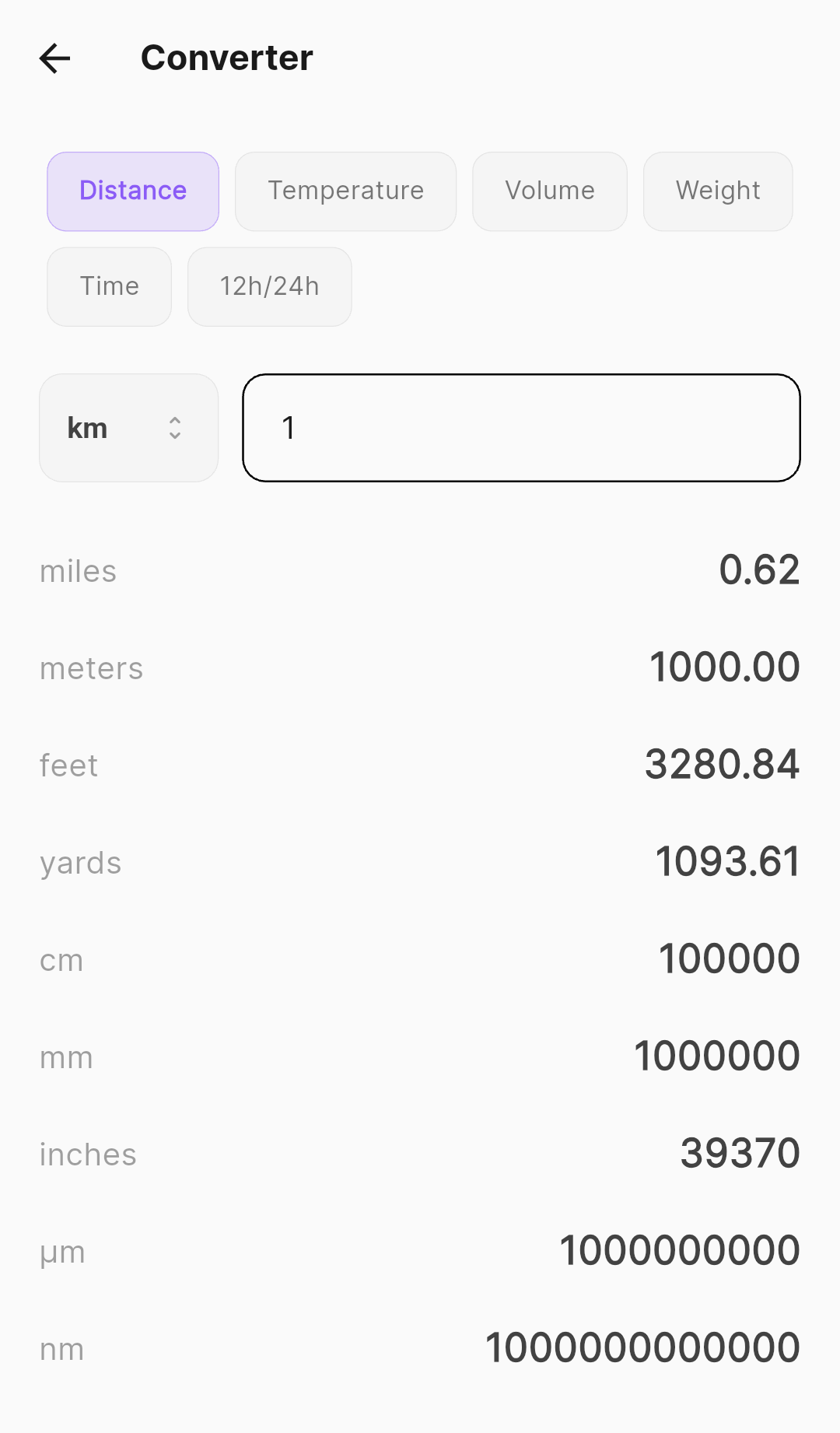
A comprehensive offline converter supporting six categories:
- Distance/Length: Kilometers, Miles, Meters, Feet, Yards, Centimeters, Millimeters, Inches, Micrometers, Nanometers
- Weight: Kilograms, Pounds, Ounces, Grams, Stones
- Temperature: Celsius, Fahrenheit, Kelvin
- Volume: Liters, Gallons (US), Quarts, Cups, Milliliters, Fluid Ounces
- Time: Seconds, Minutes, Hours, Days, Weeks, Months, Years
- Time Format: 12-hour (AM/PM) to 24-hour (railway time) converter
How to use
- Select a category from the buttons at the top
- Choose your input unit from the dropdown next to the input field
- Enter a value — all other units update instantly
- Any unit can be used as input, not just the first one
Blood Type Compatibility
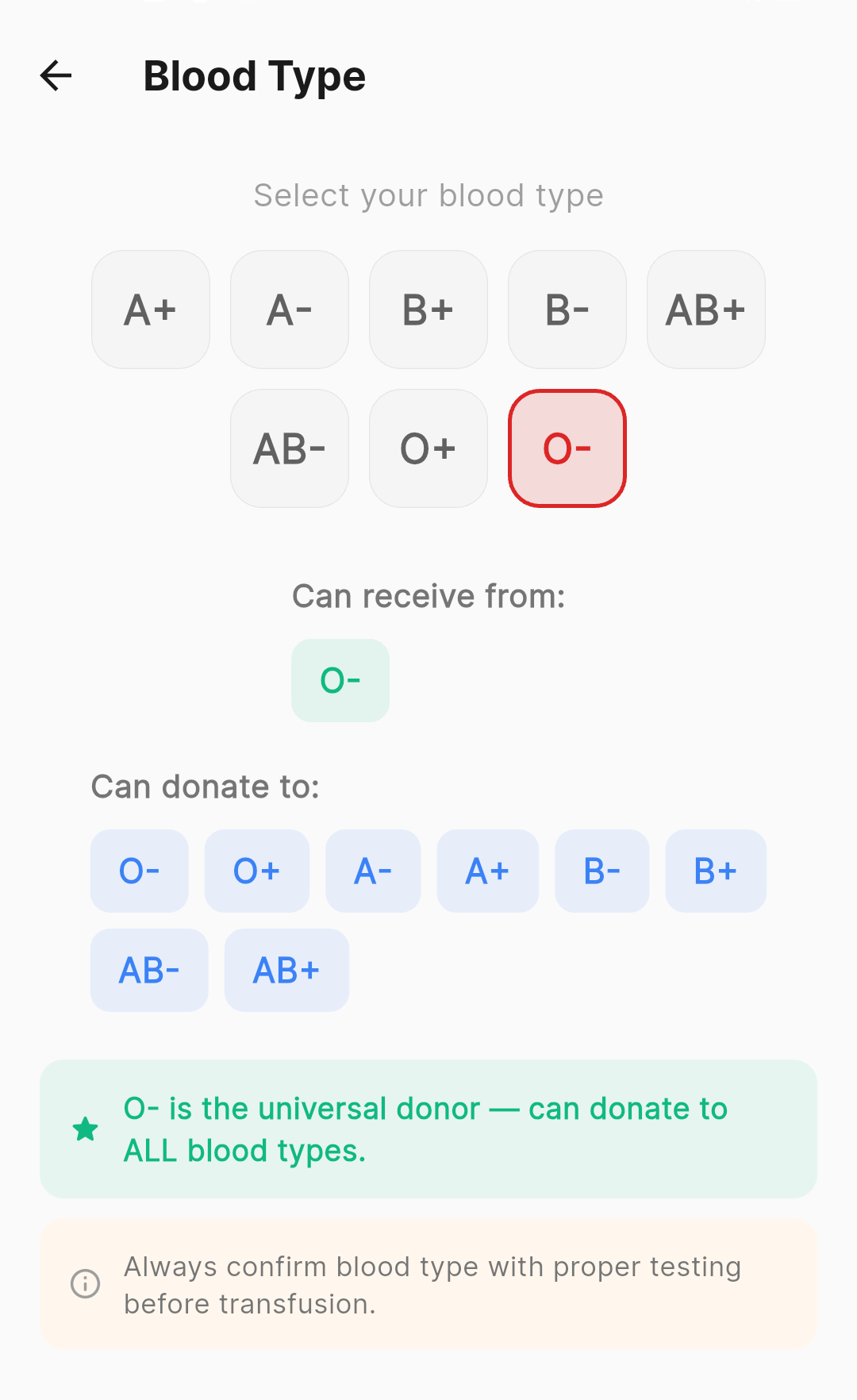
Select your blood type (A+, A-, B+, B-, AB+, AB-, O+, O-) to instantly see:
- Who you can receive blood from
- Who you can donate to
- Universal donor (O-) and universal receiver (AB+) highlights
- Rh factor warnings for pregnancy
A general blood safety warning is always displayed regardless of which type is selected. Specific compatibility information appears above the general warning when you select a type.
Sun Position Calculator
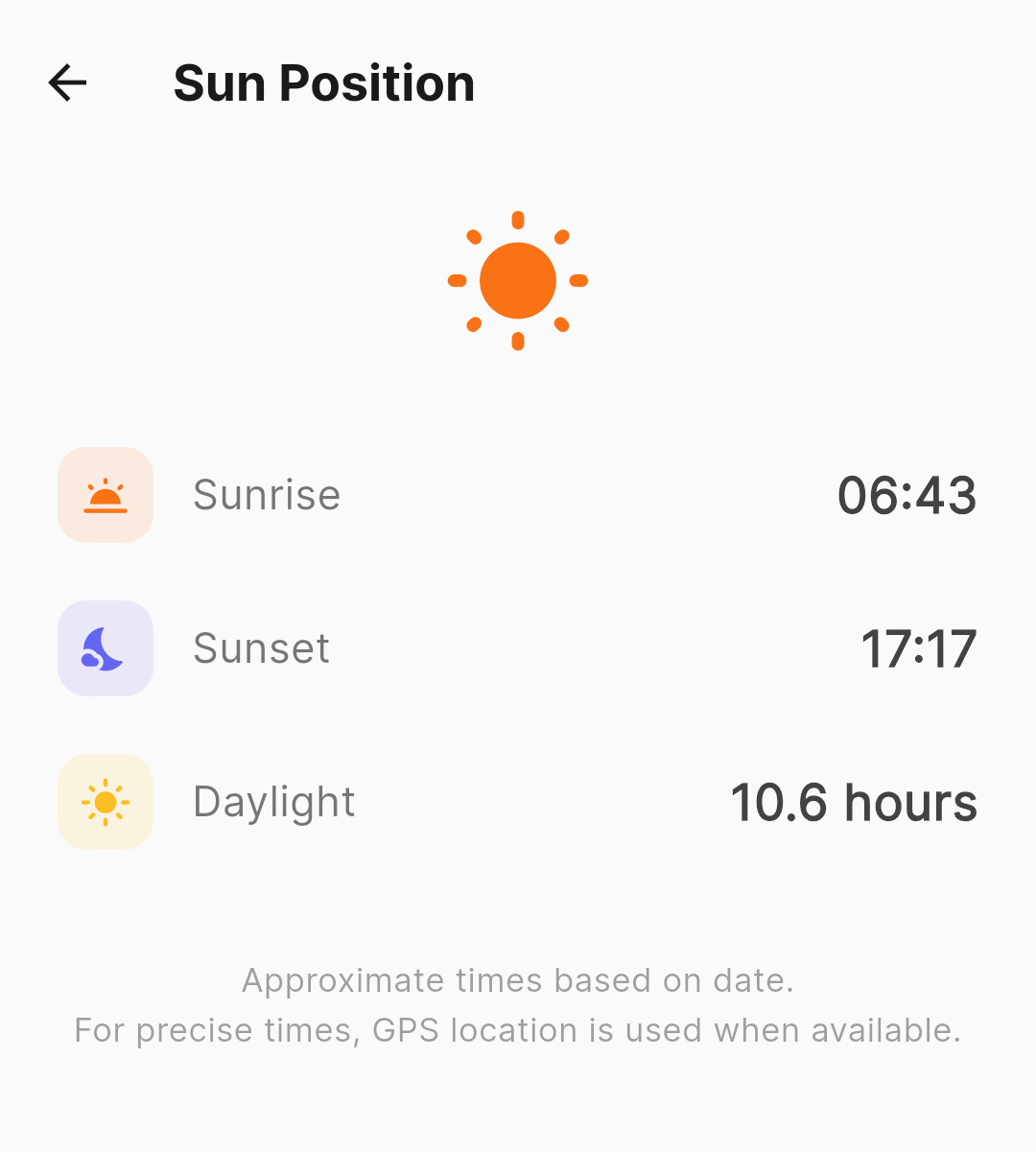
Calculates sunrise and sunset times based on your GPS coordinates and the current date. No internet needed — uses astronomical formulas.
Useful for planning travel (avoid moving at night), shelter orientation (face openings away from the setting sun for warmth), and estimating remaining daylight hours.
Altitude / Barometer
Reads your phone's pressure sensor to estimate altitude above sea level and display barometric pressure.
- Altitude: Estimated in meters, calculated from atmospheric pressure
- Pressure: Displayed in hPa (hectopascals)
- Weather indication: Rapidly falling pressure often indicates incoming storms
Morse Code Translator
Type any text and see the Morse code equivalent in dots and dashes. Useful for signaling with a flashlight, tapping on metal, or any on/off signaling method.
Common codes to know: SOS = ··· ─── ···
Timer / Countdown
A countdown timer with custom time input. Set any duration and the timer counts down with audio notification when complete.
Key feature
The timer persists across navigation — if you start a timer and switch to another tool or the chat, the timer keeps running in the background. When it completes, you'll be notified.
Useful for: water purification timing (boiling, chemical treatment wait times), medication intervals, shift rotations in group survival, and rest periods.
World Clock
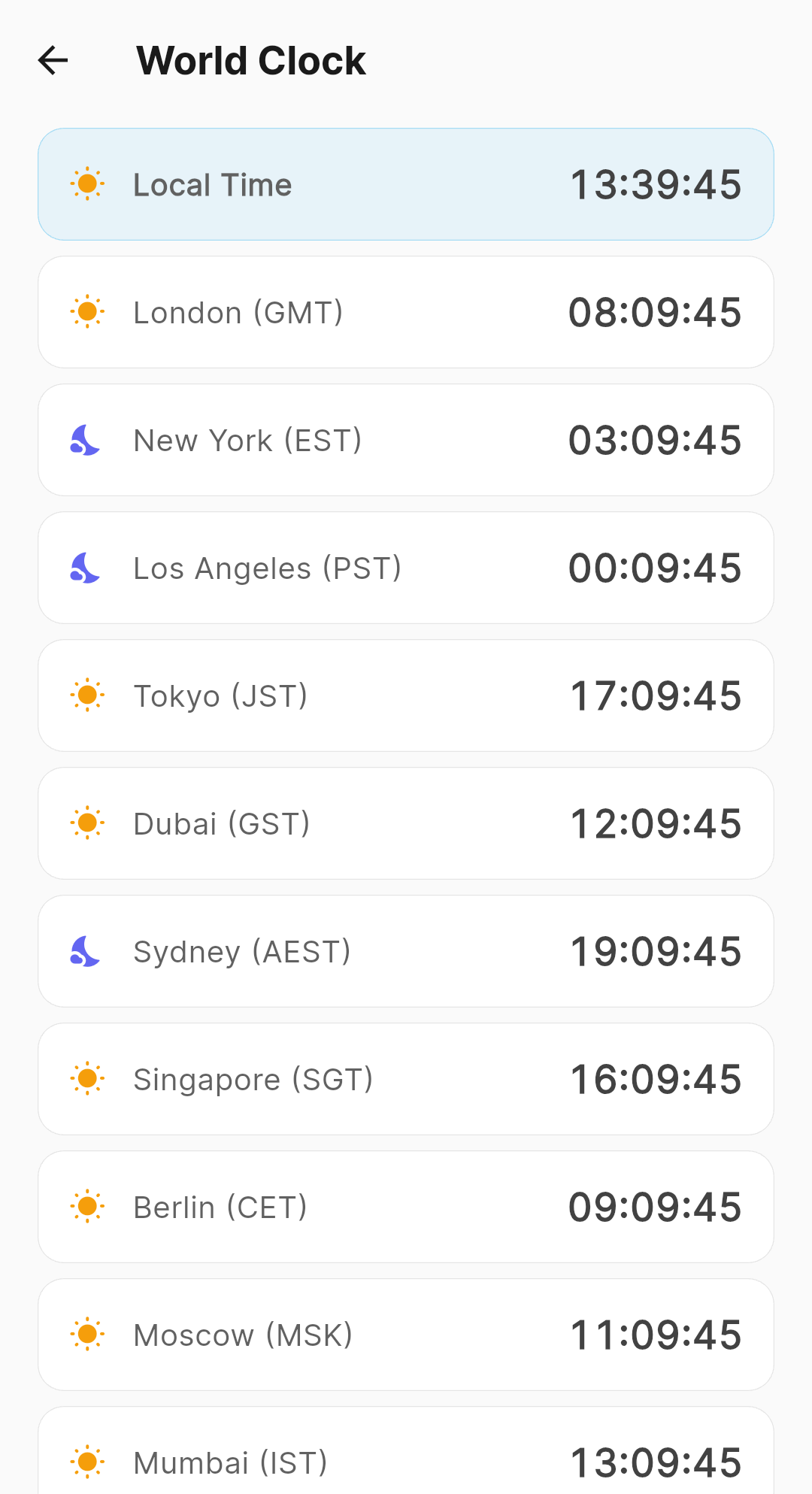
Shows the current time in major cities around the world. Fully offline — calculated from UTC offset and your device clock.
Useful when coordinating with rescue teams, embassies, or contacts in different time zones.
Signal Mirror Angle Calculator
Uses your compass heading and the sun's position to calculate the exact angle you need to aim a signal mirror to reflect sunlight toward a target (aircraft, distant rescuers).
Signal mirrors are one of the most effective long-range rescue signals — effective up to 50km in clear conditions — but only if aimed correctly. This calculator removes the guesswork.
Rain Collector Calculator
Input your container size and estimated rainfall rate to calculate how long it will take to collect a drinkable amount of water. Helps with water planning and managing expectations during rain events.
Body Temperature Estimator
Estimates core body temperature using a symptom checklist and pulse rate input — no thermometer needed.
- Enter your pulse rate (beats per minute)
- Check applicable symptoms (shivering, confusion, hot skin, sweating, etc.)
- The tool estimates whether you're in a normal, hypothermic, or hyperthermic range
Edible Plant Quick Reference
Text-based identification cards for common edible plants organized by biome. Each card includes physical description, habitat, seasonal availability, preparation methods, and warnings about poisonous look-alikes.
Inventory Management System
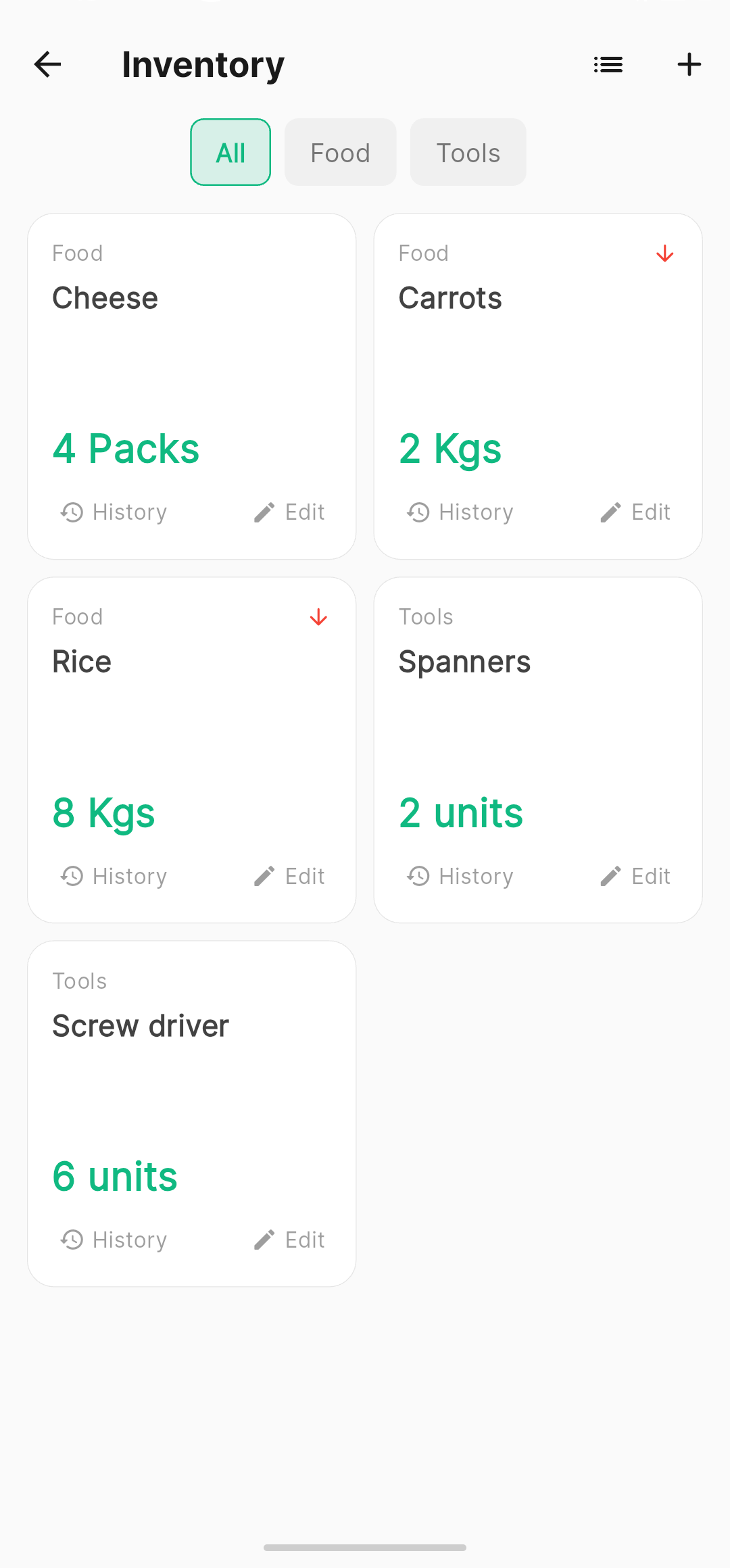
A complete resource tracking system for survival situations. Track what you have, what you're consuming, and predict when supplies will run out.
Creating categories
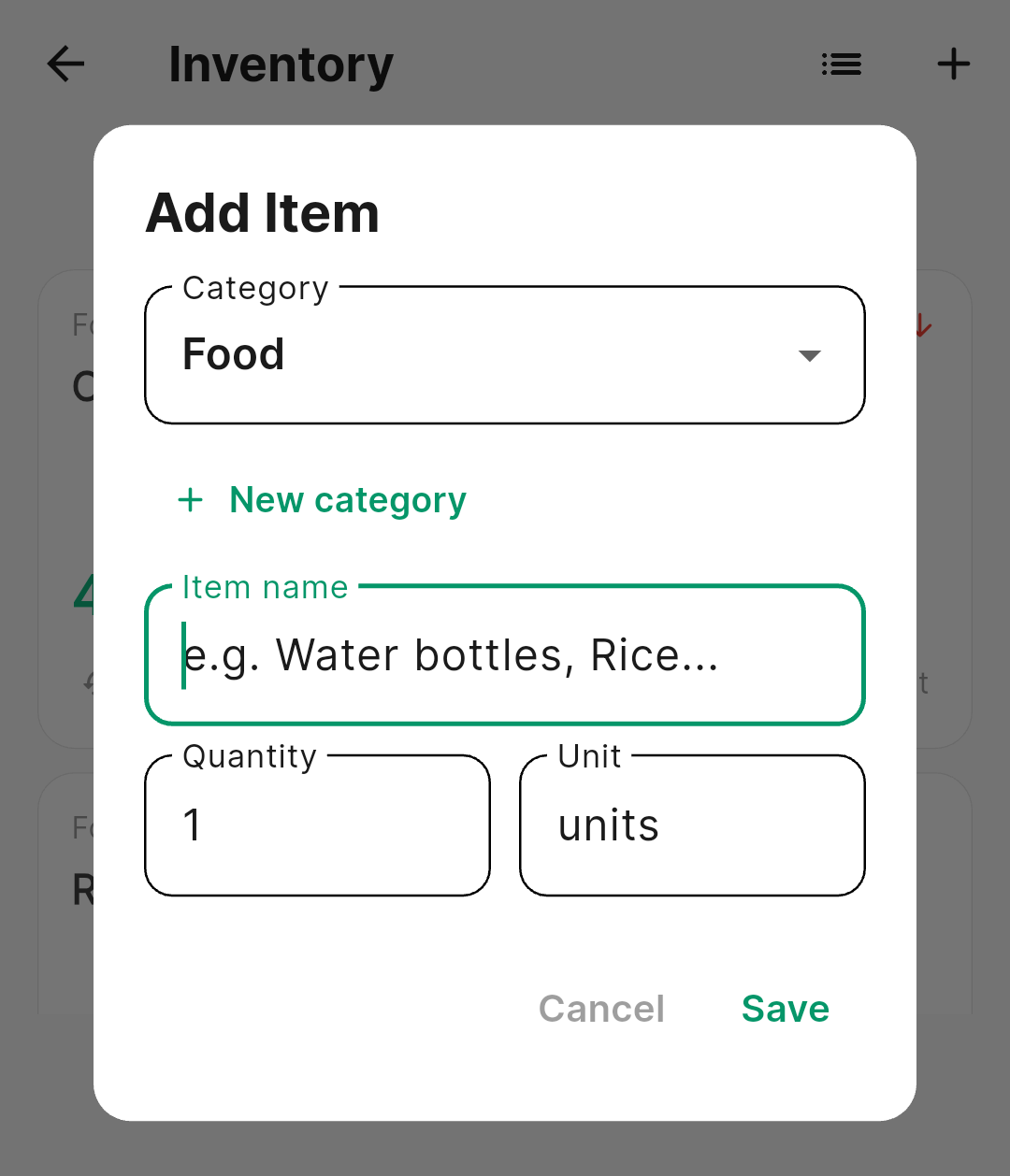
Tap the Inventory button at the top of the Tools page
Tap the + button
Select an existing category from the dropdown, or tap New Category to create one (e.g., Food, Water, Medicine, Tools)
Enter the item name, quantity, and unit
Tap Save
Updating quantities
Tap the Edit button on any item card to update its quantity. Every update is logged with a timestamp.
Viewing history
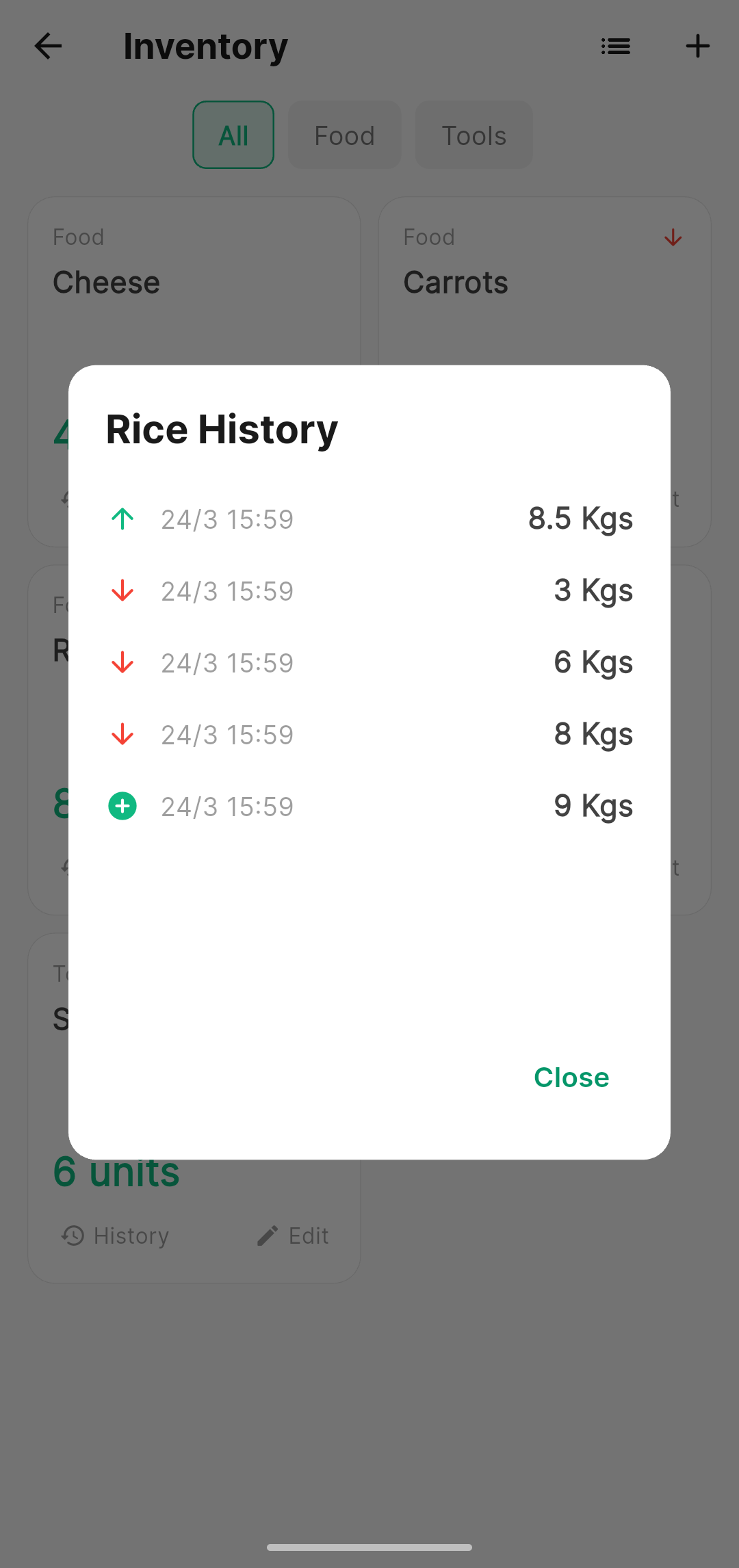
Tap any item card or the History button to see the complete history of quantity changes over time. This shows your consumption rate and helps you estimate remaining supply days.
Stock indicators
Each item card shows an arrow indicator: an up arrow (green) means stock increased since last update, a down arrow (red) means stock decreased. This gives you an at-a-glance view of your supply trends.
Filtering
Use the category filter to show only items from a specific category (e.g., show only Food items).
Deleting categories
Long-press or use the delete option on a category. A confirmation dialog will appear: "Do you want to delete [category name]? This action is reversible." Choose Yes, delete or No, keep it.
Tasks / Checklist
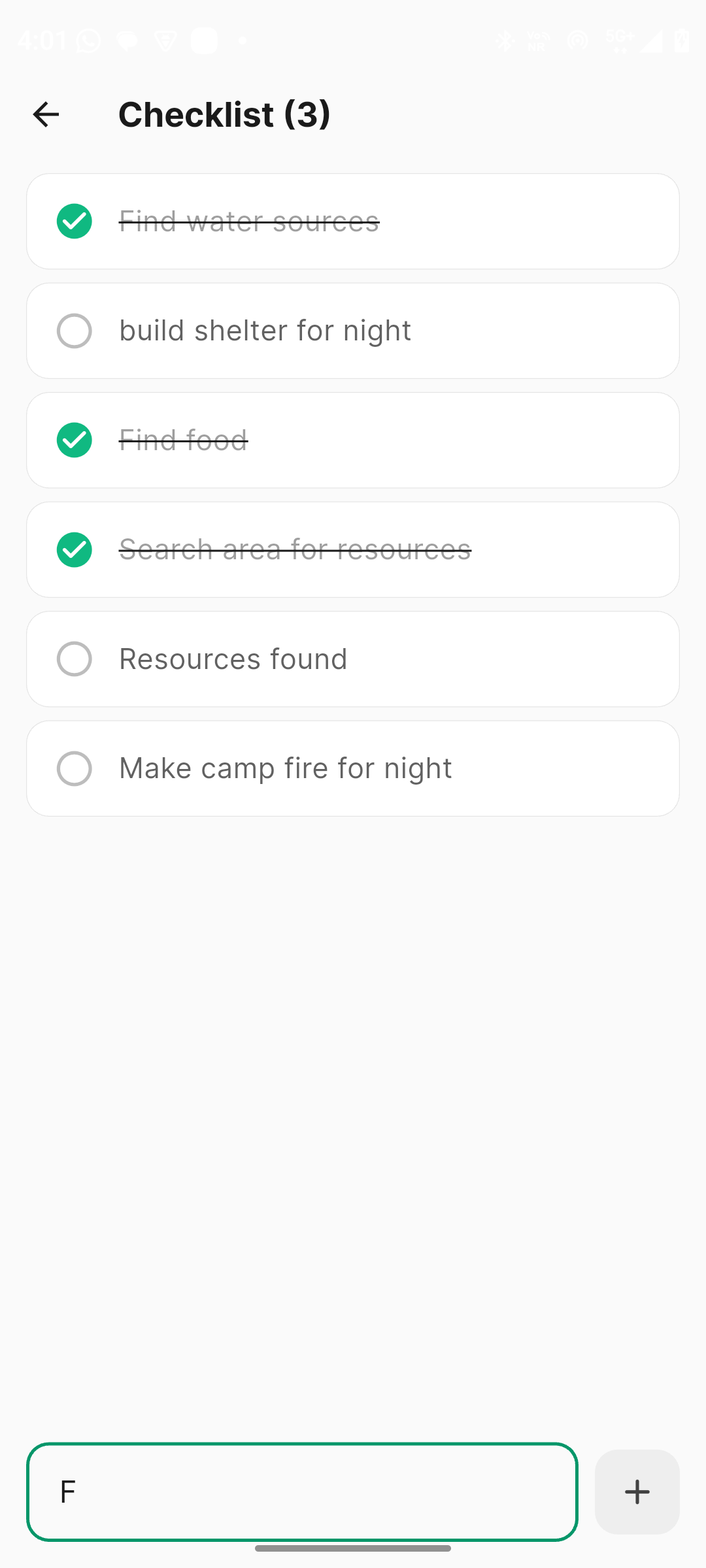
A simple todo list for managing survival tasks.
- Tap + to add a new task
- Tap a task to mark it as complete (checkbox)
- Swipe a task to delete it
- Tasks persist across app restarts
Use cases: daily water collection assignments, scouting routes to check, group task delegation, supply gathering lists, shelter maintenance tasks.
Field Journal
A full-featured note-taking tool designed for survival documentation.
Creating a note
Tap the Journal button at the top of the Tools page
Tap the + button in the center
A full-screen text editor opens — start typing
Your note is auto-saved every 3 seconds and when you press back
Titles
If you don't set a title, VELORYN automatically uses the first sentence of your note as the title. If the first sentence is too long, it's truncated with "..." You can edit the title at any time.
Color coding
Assign one of 10 colors to any note for visual organization. The title card in the journal home page displays in your chosen color. Use colors to categorize: red for urgent, blue for water-related, green for food, etc.
Journal home view
Notes are displayed as a bento box grid showing the title and date/time. Tap any card to open and edit. Use the 3-dot menu button on each card's top-right corner for options: Edit, Share, Delete.
Sharing notes
Tap the 3-dot menu → Share. This uses your device's native share function, allowing you to send the note via any available method (nearby share, Bluetooth, etc.).
Deleting notes
A confirmation dialog appears before deletion to prevent accidental loss.
Mesh Network / Device Discovery
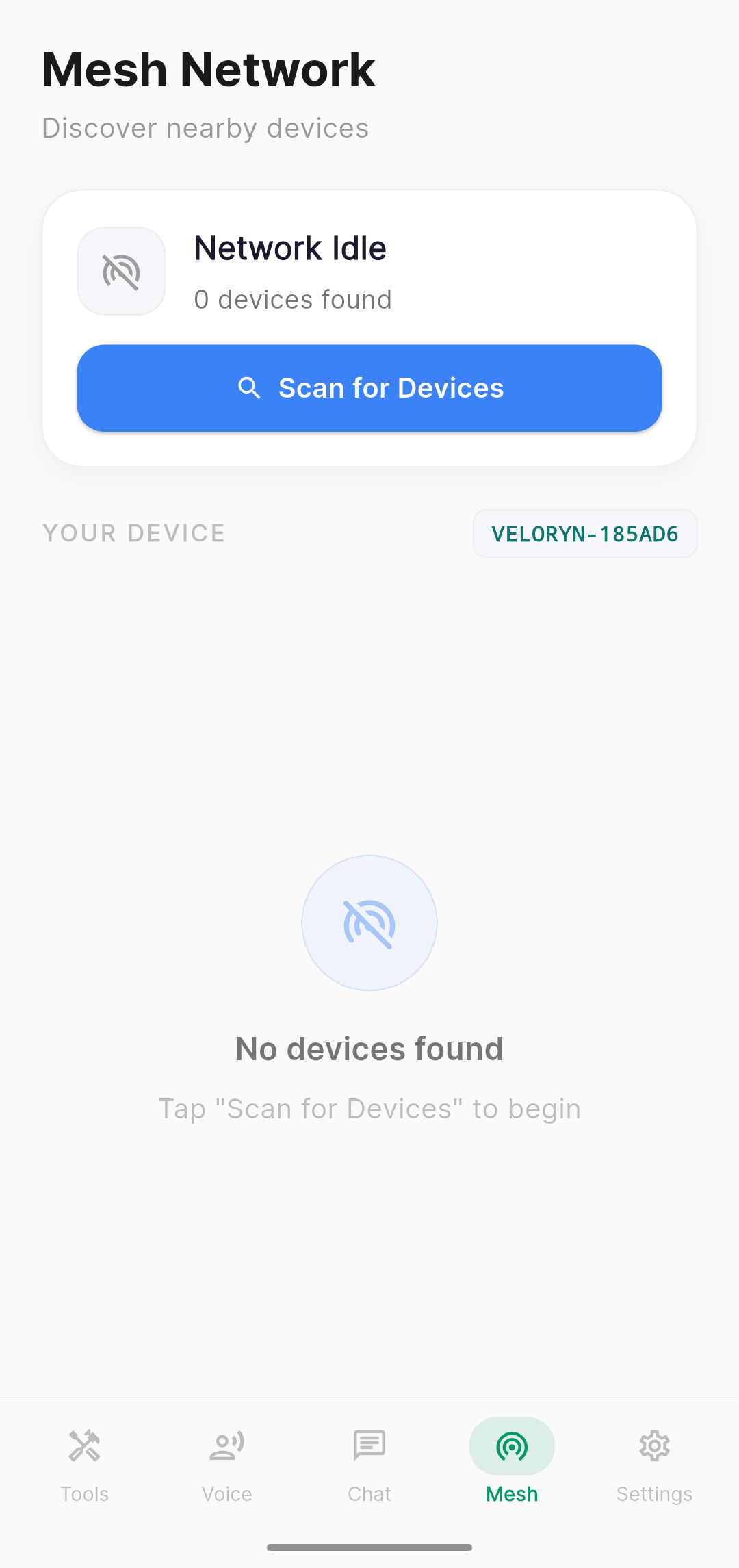
The Mesh tab enables peer-to-peer device discovery using Bluetooth and WiFi Direct. This works without cell towers, internet, or any infrastructure.
How to use
Navigate to the Mesh tab
Tap Scan for Devices
Nearby devices running VELORYN (within ~100 meters) will appear in the list
This feature is designed for disaster scenarios where groups need to coordinate without cellular infrastructure. Ensure Bluetooth and WiFi are enabled on your device.
Settings: Appearance
Color Mode
Toggle between Light and Dark themes. Your preference is saved and persists across app restarts.
- Light mode: White backgrounds with dark text. Best for bright outdoor environments.
- Dark mode: Dark grey backgrounds with light text. Best for nighttime use — preserves night vision and saves battery on OLED screens.
Font Style
Choose between System font (your device's default) or VELORYN style (the app's custom font). Default is VELORYN style.
Font Size
Adjust the text size across the entire app. Options: Small, Medium, Large (default), Extra Large. Larger sizes are recommended for stressful situations where readability under duress matters.
Your font size preference is saved and persists across app restarts.
Settings: Resource Monitor
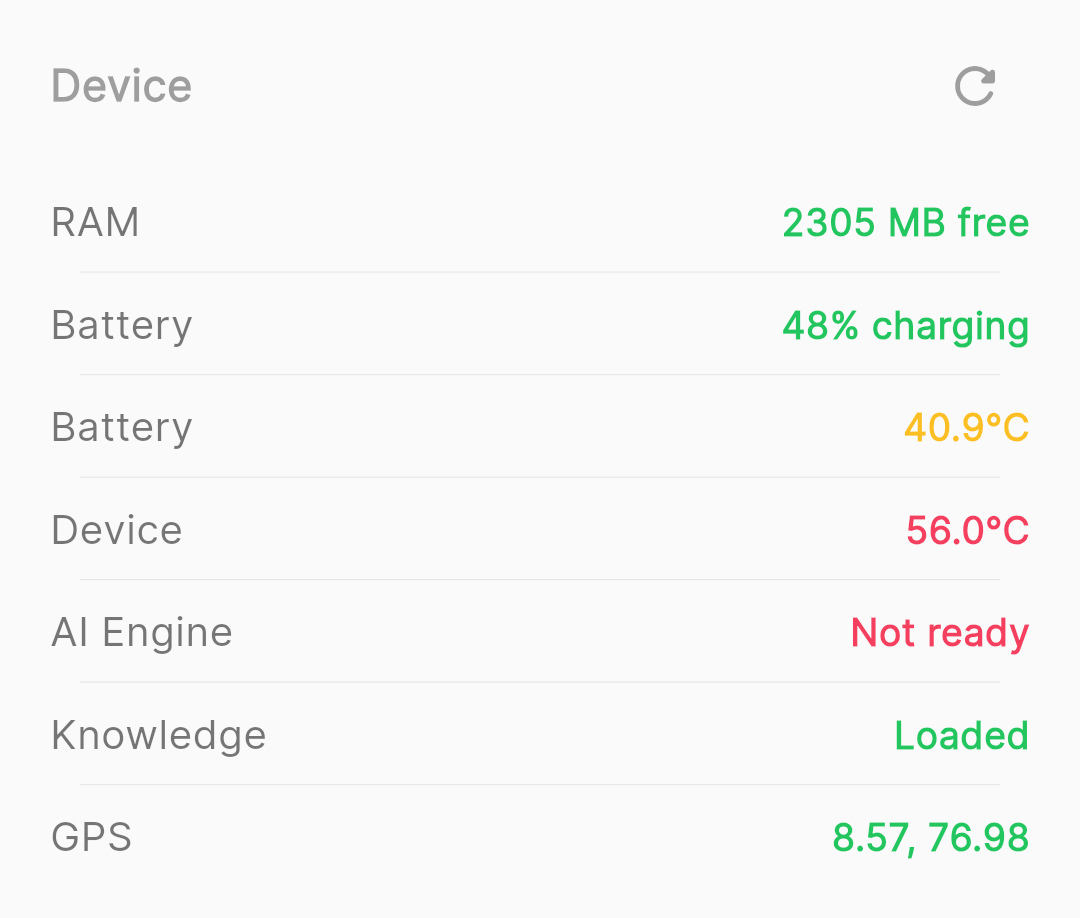
The Resource Monitor is at the top of the Settings screen and shows real-time device information:
| Metric | What it shows |
|---|---|
| Free RAM | Available memory in megabytes. The AI model needs at least 600MB free to load. |
| Battery | Current battery percentage. |
| Battery Temperature | Internal battery temperature. Above 45°C indicates the device is running hot. |
| Device Temperature | Skin/CPU thermal reading. Above 50°C means the device is severely throttling. |
| AI Engine | Shows "Ready" (green) if a model is loaded, or "Not ready" (grey) if no model is loaded. |
| Knowledge Base | Number of indexed documents from the survival database. |
| GPS | Current coordinates, detected biome, and season. |
Refresh button
Tap the reload icon on the right side of the Resource Monitor header to instantly refresh all readings. The monitor also updates automatically at regular intervals.
Settings: Model Management
Unload Model
The Unload Model button immediately frees the AI model from RAM. The button is located above the Advanced section in Settings.
When you tap Unload, a confirmation dialog appears:
- "Yes, stop & unload" — Immediately stops any active generation and unloads the model
- "No, keep it" — Cancels the action
Benefits of unloading:
- Frees 600MB–2.5GB of RAM (depending on which model was loaded)
- Stops overheating and battery drain
- Improves overall device performance when AI is not needed
The model will automatically reload when you send your next chat query.
Settings: Survival Mode
A toggle to switch between normal mode and survival/emergency mode globally. When enabled, all AI responses are optimized for life-critical situations — shorter, more action-oriented, and focused on immediate survival priorities.
This is the same as tapping the SOS button in the Chat screen, but accessible from Settings for convenience.
Settings: Advanced
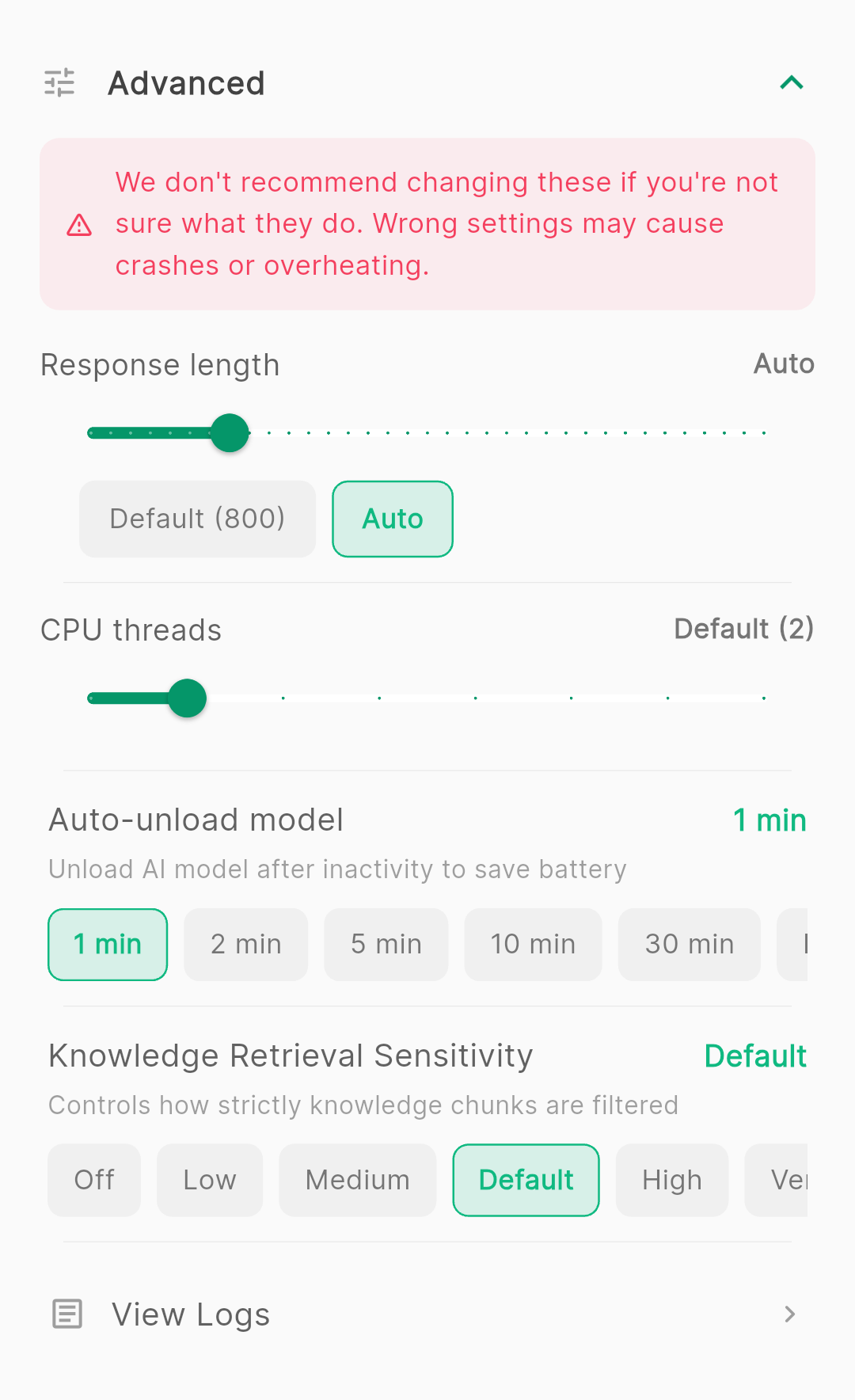
Response Length
Controls the maximum number of tokens (roughly words) the AI can generate per response.
| Setting | Effect |
|---|---|
| Low (100–300) | Very short responses. Suitable for low-end devices or quick questions. |
| Default (800) | Balanced. Recommended for most devices and use cases. |
| High (1000–2000) | Long, detailed responses. Requires more processing time and battery. |
| Maximum (3500) | Extremely long output. Only for powerful devices with 8GB+ RAM. Will cause significant heat generation. |
Two quick buttons are available:
- Default — Resets to 800 tokens. A known-good value for most devices.
- Auto — Reads your device's available RAM and automatically sets an appropriate value (400 for low RAM, 800 for medium, 1200 for high).
CPU Threads
Controls how many CPU cores the AI uses for inference.
| Setting | Effect |
|---|---|
| 1 thread | Slowest but coolest. Minimal heat generation. Good for preserving battery. |
| 2 threads (Default) | Balanced. Uses the two fastest CPU cores. Recommended for most phones. |
| 4 threads | Faster prefill but may cause thermal throttling on mid-range devices. |
| 6–8 threads | Maximum speed. Only for flagship devices with 4+ big CPU cores. Will cause significant heat. |
Auto-Unload on Inactivity
Automatically unloads the AI model after a period of inactivity to save battery and reduce heat.
| Setting | Behavior |
|---|---|
| 1 minute (Default) | Model unloads 1 minute after your last query. Good for casual use. |
| 2, 5, 10, 30 minutes | Longer timeouts for sessions with intermittent queries. |
| Never | Model stays loaded until you manually unload it or close the app. Maximum convenience but highest battery drain. |
Knowledge Retrieval Sensitivity
Controls how strictly the knowledge base filters search results before feeding them to the AI.
| Setting | Effect |
|---|---|
| Off | All retrieved chunks are included regardless of relevance. May confuse the AI with irrelevant data. |
| Low (0.3) | Most chunks included. Higher chance of finding relevant information, but also more noise. |
| Medium (0.4) | Balanced retrieval. |
| Default (0.5) | Recommended. Good balance between finding relevant information and filtering noise. |
| High (0.6) | Stricter filtering. Only highly relevant chunks are included. May miss some useful information. |
| Very High (0.7) | Very strict. Only near-exact matches are included. The AI will rely mostly on its own knowledge. |
View Logs
Opens the diagnostic log viewer. Logs are written to disk and survive app crashes. Each log session shows a timestamp and contains entries for every significant event (service initialization, model loading, query processing, errors).
- Tap any log session to view its contents
- Use the back button to return to the session list
- Tap Clear Logs to delete all log history (a confirmation dialog appears — this action is irreversible)
- Long-press any log text to copy it
Logs are useful for troubleshooting issues. If you experience a crash or unexpected behavior, check the logs immediately after — they contain the exact sequence of events that led to the issue.
Understanding Log Entries
Log entries follow this format: [time] [severity] message
| Severity | Meaning |
|---|---|
| INFO | Normal operation — service started, model loaded, query processed |
| WARN | Something unexpected but non-critical — fallback search used, partial result |
| ERROR | Something failed — model failed to load, generation error |
| FATAL | Critical failure — usually the last entry before a crash |
When reporting issues, include the full log session from the time the problem occurred.
Troubleshooting
Most likely cause: Low available RAM. The AI model needs at least 600MB of free RAM to operate.
Solution:
- Close other apps running in the background
- Check the Resource Monitor in Settings — if Free RAM is below 600MB, close background apps
- If the issue persists, try switching to Detailed or Very Detailed mode (uses a smaller model)
- Reduce the Response Length in Advanced Settings
Cause: The AI model started generating but produced no output. This can happen when the model was auto-unloaded during generation or when the prompt exceeds the context window.
Solution:
- Try sending the same message again
- If the auto-unload timer is set to 1 minute, increase it to 5 or 10 minutes
- Reduce the Response Length if set above 1000
- Clear the chat and start a new conversation (old messages may be filling the context)
Cause: The knowledge retrieval returned irrelevant chunks that confused the AI, or the Response Length is set higher than the context window can support.
Solution:
- Set Knowledge Retrieval Sensitivity to Default (0.5) in Advanced Settings
- Reduce Response Length to 800 (Default)
- Try rephrasing your question with more specific terms
- Switch to Smart mode for the highest quality responses
Cause: AI inference is computationally intensive. The CPU is working at high capacity to process your queries.
Solution:
- Reduce CPU Threads to 1 or 2 in Advanced Settings
- Enable auto-unload (1 or 2 minutes) so the model unloads between queries
- Manually unload the model when not actively asking questions
- Use Detailed mode instead of Smart mode — it uses a lighter model that generates less heat
- Remove your phone case to improve heat dissipation
- Avoid using VELORYN while charging — charging + AI inference generates extreme heat
Monitor: Check the Resource Monitor. Battery temp above 45°C or Device temp above 50°C means your device is throttling and may become unstable.
Cause: In earlier versions, stopping generation could cause a conflict. This has been fixed in recent updates.
Solution:
- Make sure you're running the latest version of VELORYN
- If the issue persists, wait for the response to complete rather than stopping it
- Check the logs for details and report the issue
Cause: Your device may not have offline speech recognition installed. Without it, the speech engine times out immediately.
Solution:
- Go to your phone's Settings → Google → Voice → Offline Speech Recognition
- Download the English (or your preferred language) speech pack
- This requires a one-time internet connection to download (~50MB)
- After downloading, voice input works fully offline
Cause: GPS requires clear sky visibility. Indoor use, dense forest canopy, or urban canyons can block satellite signals.
Solution:
- Move to an open area with clear sky view
- Wait 30–60 seconds for the initial GPS fix (cold start takes longer without internet)
- Ensure location permissions are granted to VELORYN in your device settings
- The GPS icon in the status bar should be active when VELORYN is reading location
Cause: Magnetic interference from nearby metal, electronics, or magnets.
Solution:
- Calibrate: move your phone in a figure-8 pattern several times
- Move away from metal objects, vehicles, speakers, and other electronics
- Hold the phone flat and level — tilting causes inaccuracy
- Some phone cases with magnetic clasps can interfere — try removing the case
Explanation: Battery temperature changes slowly (1–2°C per minute) which can make it seem stuck. Device temperature is more responsive but depends on your device's thermal sensors.
Solution:
- Tap the refresh button in the Resource Monitor to update readings
- Wait 30 seconds between refreshes for meaningful changes
- The readings are accurate — temperature simply doesn't change as fast as other metrics
Expected behavior: Both the SOS Flashlight and Emergency Siren should continue running when you navigate away. They only stop when you explicitly tap Stop.
If they're stopping unexpectedly:
- Make sure you're running the latest version
- Some devices aggressively kill background processes — check your device's battery optimization settings and exempt VELORYN
- Go to Device Settings → Apps → VELORYN → Battery → set to "Unrestricted"
Cause: Your device may be aggressively clearing app data or the app storage might be corrupted.
Solution:
- Make sure VELORYN is not set to "Clear data on close" in your device settings
- Exempt VELORYN from any "battery optimizer" or "memory cleaner" apps
- Check that your device has at least 100MB of free internal storage
Performance Tips
Maximizing battery life
- Set auto-unload to 1–2 minutes — the model loads quickly when needed
- Use Detailed mode instead of Smart mode for non-critical questions — it's 5x faster
- Keep CPU threads at 2 (default) — more threads waste battery on mid-range devices
- Use Dark mode on OLED screens — black pixels use zero power
- Turn off the SOS flashlight and siren when not needed — they drain battery quickly
Getting the best AI responses
- Be specific in your questions — include your environment, available resources, and constraints
- Use Smart mode for complex decisions that require reasoning
- Keep Knowledge Retrieval Sensitivity at Default (0.5) unless you have a reason to change it
- If a response is unsatisfactory, rephrase your question with different terms — the knowledge base may match better with alternative wording
- Start a new chat session if responses become inconsistent — old conversation history can consume context space
Keeping your phone alive as long as possible
- Reduce screen brightness to the minimum usable level
- Enable airplane mode if you don't need Mesh networking — radios consume significant power
- Unload the AI model when not asking questions
- Use the timer tool for timed activities instead of constantly checking the screen
- Your phone is your most critical survival tool — treat its battery as a limited, non-renewable resource
VELORYN Documentation · © 2026 AegisVectro · Back to Home